
PDF drawing review
How to redline a PDF drawing and send comments back
Open a PDF in your browser, cloud and callout the issue, export an annotated PDF, and send it back to the architect.
- No upload for local PDFs
- No account needed
- PDF and CSV export
How to redline a PDF drawing
Follow these steps to mark a sheet, make each instruction clear, and return a file the next person can review.
1. Open the drawing
Choose Open a PDF drawing and select the sheet from your device. It opens in the browser for review. Start with the sheet number and title block so your comment can point back to a location the architect can identify. If the detail you need is on another sheet, note its sheet and detail reference before adding the markup.
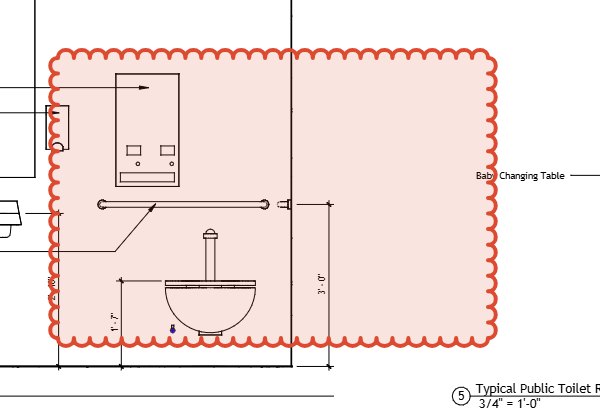
2. Draw a revision cloud around the issue
Choose the cloud tool and draw around the specific area that needs a change. Keep the cloud tight enough to distinguish the issue from nearby work. A separate cloud for each issue makes the review easier to scan and gives each instruction a clear location. You can select the cloud later to adjust its appearance or remove it.
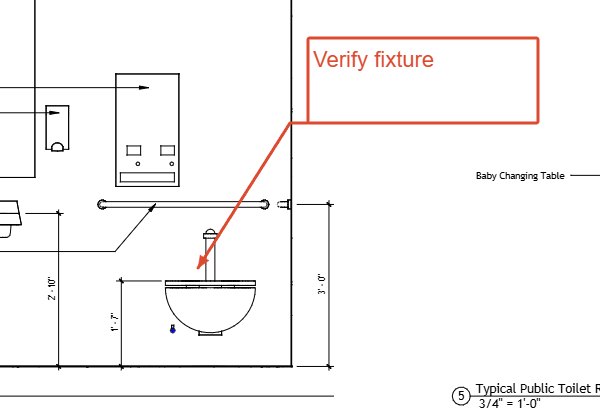
3. Add a callout or text instruction
Use a callout when you want the note visibly connected to the cloud, or place a text note nearby. Say what should change, where it should happen, and which detail or sheet gives the context. For example, name the item and the action instead of writing only "fix this." Keep the sentence short enough to read at the drawing scale.
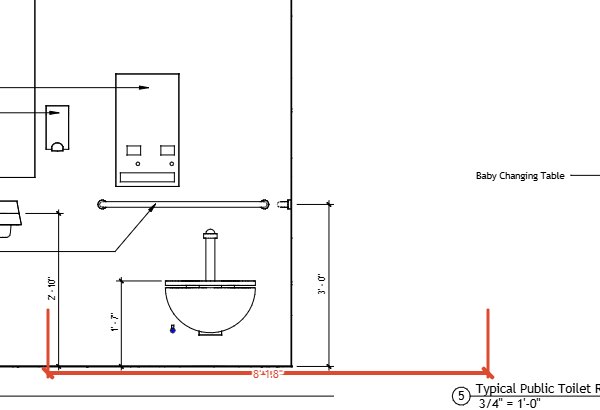
4. Add a dimension when size matters
If your comment proposes a size or clearance, add a dimension to show the intended measurement. Calibrate the drawing against a known length first, then place the dimension between the points that define the requested change. The dimension tool reports a scaled distance after calibration. Skip this step when a written instruction is enough or the drawing scale is not known.
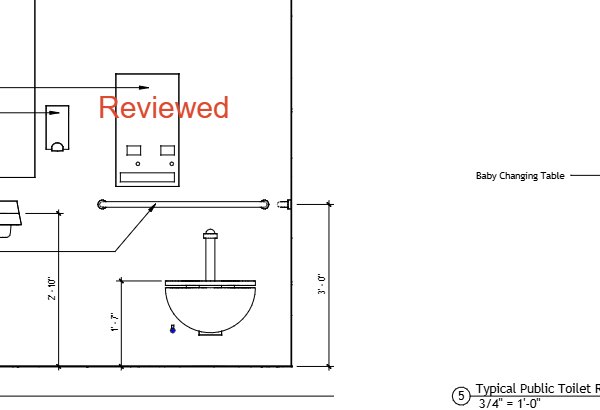
5. Review the markup list
Open the Markups list and read each entry as if you had not drawn it. Confirm that the note identifies the action and location, then check that the cloud, callout, and dimension appear on the intended sheet. Remove duplicates and clarify notes that depend on context only you know. The list can also be exported as a CSV file for sorting or tracking outside the PDF.
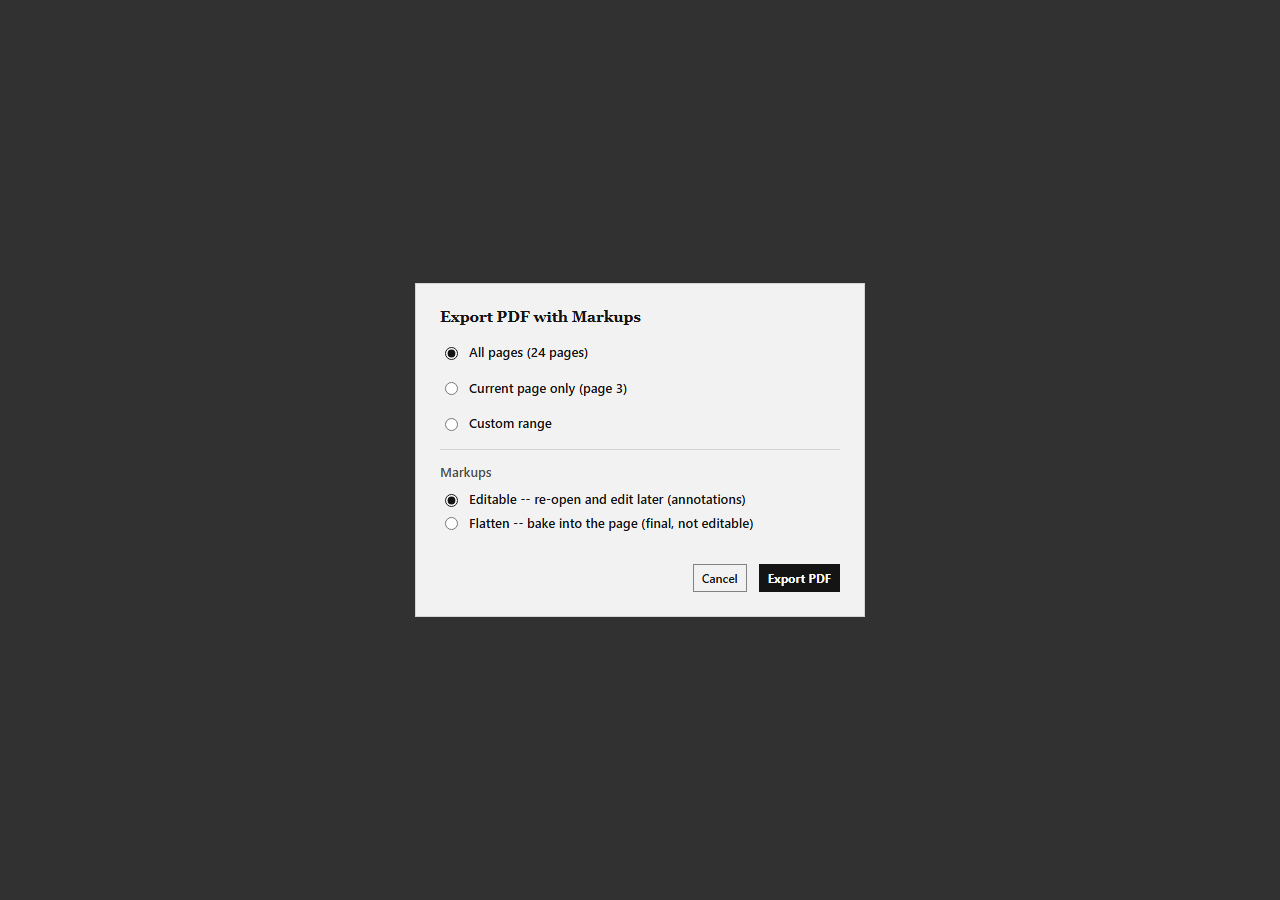
6. Export an annotated PDF and the CSV markup list
Export the annotated PDF when the visual comments are ready to return. The export includes the drawing and its markups; when the drawing has layers, the PDF export can preserve markup layers as optional content groups. Export the CSV markup list separately if the recipient also needs a row-based record of the comments. Open the exported files once to make sure the expected sheet and notes are present.
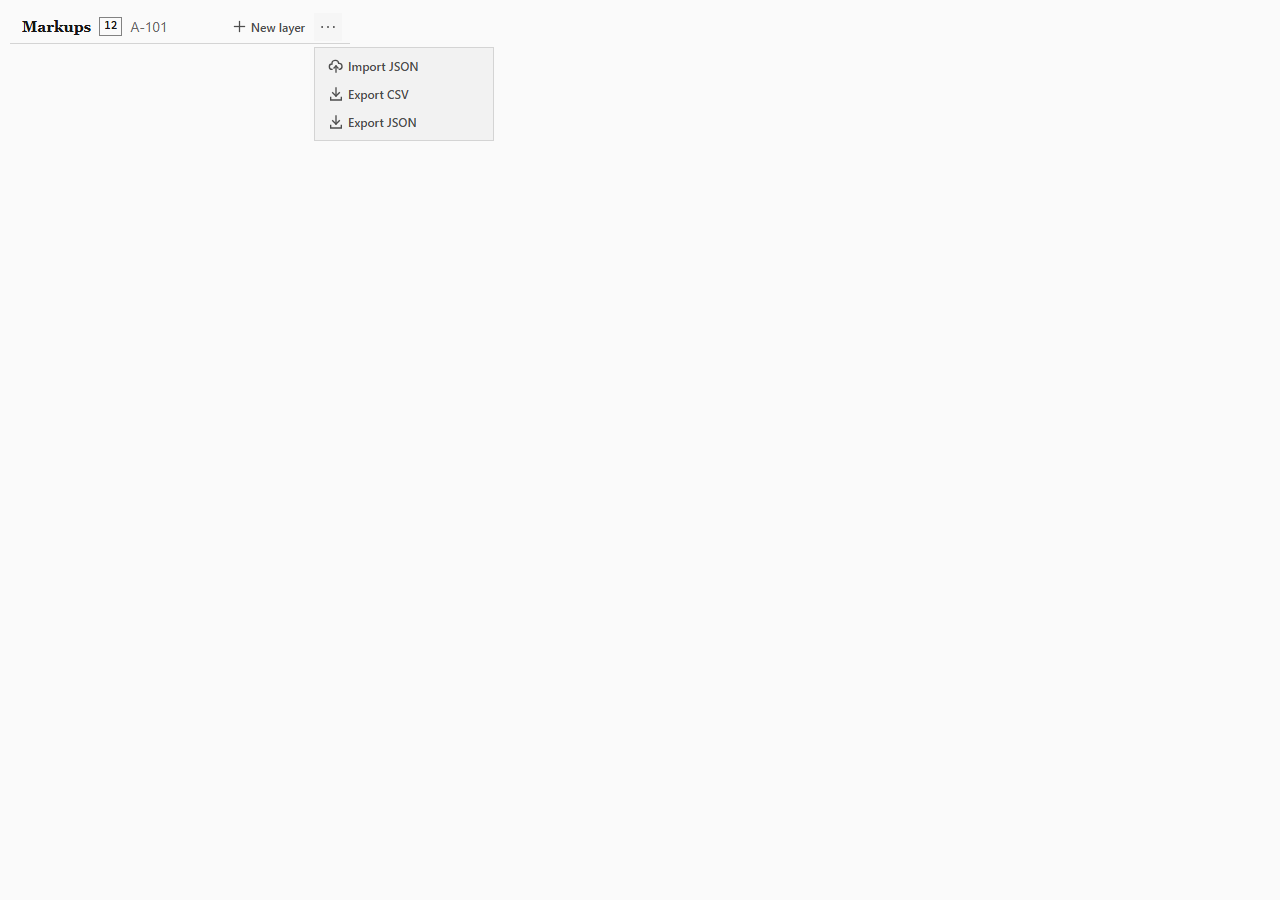
7. Send the files back
Attach the annotated PDF to your email or project message and identify the drawing revision in your note. Include the CSV when the recipient will track comments in a spreadsheet. In the message, call out any time-sensitive item and explain whether the file is for review or for incorporation. Keep the original source file and your exported copy easy to tell apart.
Write comments the architect can resolve
A useful redline gives the next person enough information to locate the issue and understand the requested action.
Keep one issue inside each cloud so a reviewer can refer to a specific location. Write the change you want, not only a reaction such as "wrong" or "please check." Name the item, the action, and any condition that affects the decision. If a note points to another view, give the sheet number and detail reference so the reader can find it without searching the whole set.
Place the instruction close to the cloud, and use a callout leader when the connection might otherwise be unclear. If the requested change depends on a size, show a dimension only after checking the drawing scale. Do not use an uncalibrated measurement as a promise of real-world size. Before exporting, read the note beside the drawing and ask whether someone who did not attend the review could understand what to do next.
What the architect receives
The annotated PDF keeps the drawing and the visible review markups together in a file that can be attached to a message. PDF Markup Tool can preserve markup layers as optional content groups in the exported PDF, so a compatible reader can show or hide those groups. The marks remain visible in the exported drawing for a straightforward review.
The CSV markup list is a separate export for recipients who want a row-based list of comments. Include it when it helps the team sort or track issues; the annotated PDF remains the visual record that shows each comment in place on its sheet. You can send the PDF alone when that is all the recipient needs.
This walkthrough describes the local PDF workflow. Cloud review sessions are separate and are not required to export and send an annotated PDF.
Do I need an account to redline a PDF drawing?
No account is needed to open a PDF locally, add markups, and export the annotated PDF.
Is my drawing uploaded when I open it?
For the local workflow on this page, the PDF is opened in your browser from your device. The local PDF markup workflow does not upload the drawing.
Can the recipient open the marked-up PDF without PDF Markup Tool?
Yes. Send the exported PDF file as an attachment; the recipient can open that PDF in a PDF reader. The CSV markup list is a separate optional file.
Can I add photos to a markup?
Yes. Add a photo to a markup in the tool, then export the annotated PDF to send the review record with the drawing.
Open a PDF drawing and start a redline
Mark the issue, make the instruction clear, and export a copy to send back.