
PDF markup on iPad
Mark up PDF drawings on iPad with Apple Pencil
Open a drawing in Safari, add Pencil markups, and export the finished PDF from your iPad.
- Safari on iPad
- Apple Pencil
- PDF and CSV export
Bluebeam retired Revu for iPad and Vu for iPad from the App Store on December 31, 2025. Read Bluebeam's EOS announcement.
How to mark up a PDF on iPad
Use Safari, Apple Pencil, and Files to mark a drawing and export your comments.
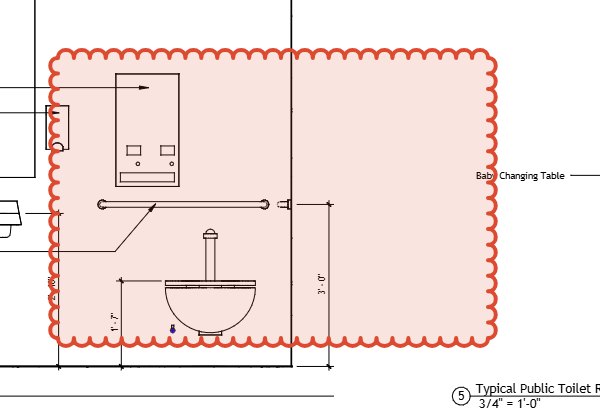
1. Open a PDF drawing in Safari
Visit pdfmarkuptool.com in Safari on your iPad, choose Open a PDF drawing, and select a file from Files. The local PDF opens in the browser without an app install or account.

2. Mark the sheet with Apple Pencil
Choose a cloud, callout, freehand, or text tool and mark the part of the drawing you want to discuss. Hold the Pencil still at the end of a freehand stroke to snap a recognized shape into a clean outline.

3. Write a note with Scribble
Open a text or callout field and handwrite your note with Scribble. Your handwriting is entered as text in the field.

4. Move around the drawing with your fingers
Use two fingers to pinch and pan the sheet while keeping Apple Pencil for drawing. Move around without changing the selected markup tool.
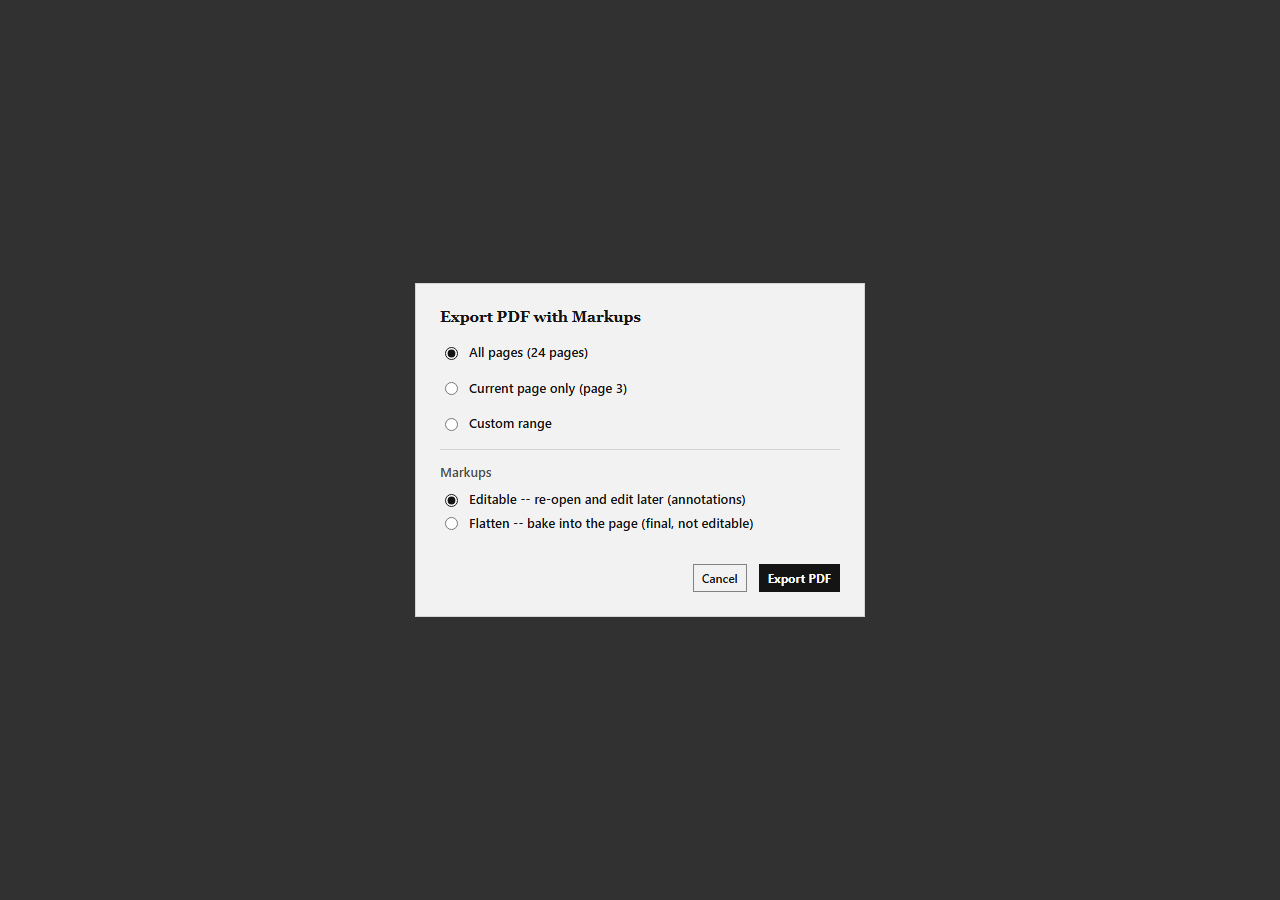
5. Export the marked-up drawing
Export an editable PDF to keep the markups editable, or a flattened PDF with marks painted onto the page. You can also export the markup list as a CSV file back to Files.
Apple Pencil tools for drawing
Use Pencil input for freehand markup, with helpful previews and shape recognition.
Smooth freehand strokes
Safari Pencil input uses coalesced samples and a short predicted tail to keep freehand drawing responsive.
Pencil hover preview
On iPads that support Pencil hover, preview where the stroke will land before touching the screen.
Hold to snap a shape
Rest the Pencil at the end of a freehand stroke to turn a recognized shape into a clean outline.
Do I need to install an app?
No. Open pdfmarkuptool.com in Safari and work with a PDF from Files in the browser.
Does it work with Apple Pencil?
Yes. Draw with Apple Pencil, use hover preview on supported iPads, and hold at the end of a stroke to snap a recognized shape.
Are my drawings uploaded?
A PDF opened from Files uses the local workflow in your browser; that workflow does not upload the drawing.
Can I export the markups?
Yes. Export an editable or flattened PDF, and export the markup list as a separate CSV file.